
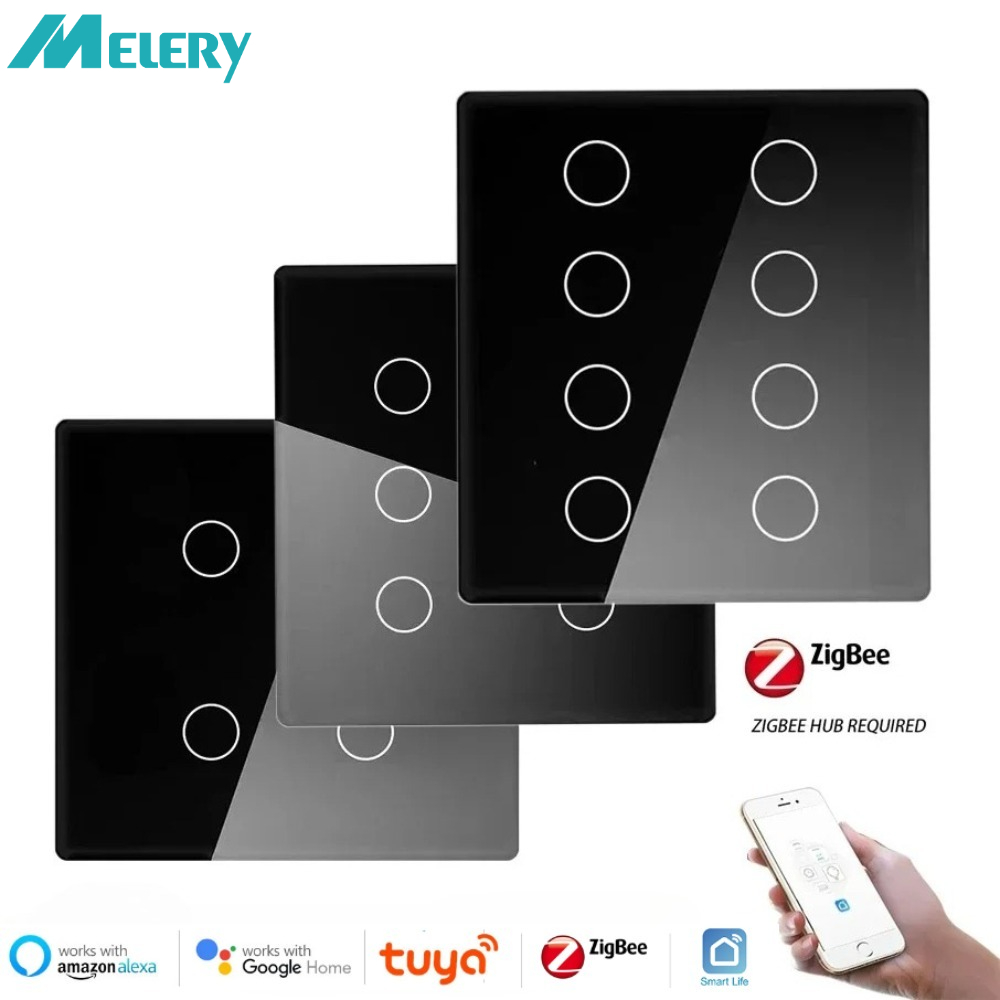
Tuya Smart Life Zigbee 4×4 Brazil Touch Panel Light Switch Neutral Wire Required 4/6/8 Gang Alexa Google Home 110-220V Neutral Wire and Gataway/HUB Required
Specification
–Name:4*4 Zigbee Switch
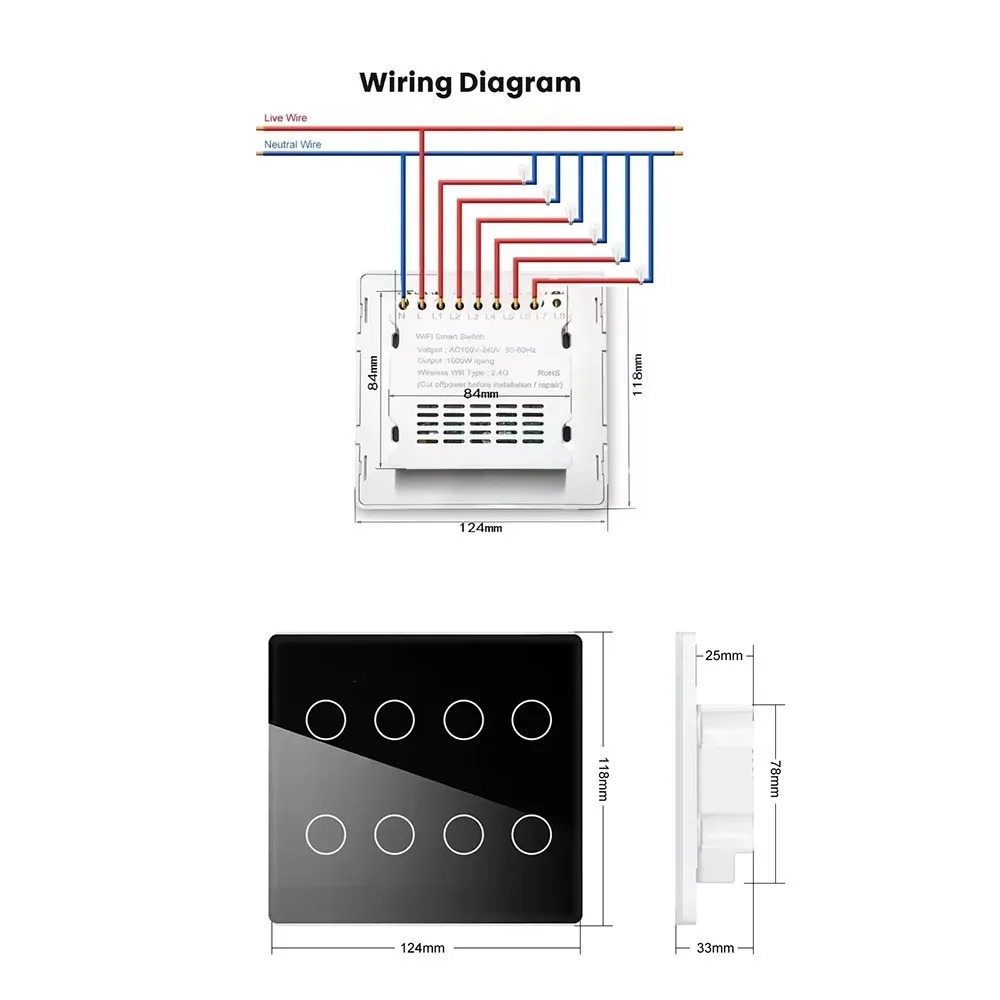
–Product Size: 120 x 120x 36mm
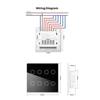
–Support: Neutral Wire Required
–System: support IOS8.0 / Android4.0 and above
–Wireless Protocal: Wi-Fi 2.4G
–Material: ABS flame retardant
–Panel Material: tempered glass
–Rated Power: 500W/gang
–Rated Current: 10A
–Input Voltage: AC100 ~ 250V, 50 / 60hz
–Standby Power:<0.6W
–Temperature&Humudity: -10-45° 5-95%RH No Condensation
Package List
–1*Smart Wifi Switch
–2*Screws
{Zigbee Light Switch} Brazil 4*4 smart light switch(Need Neutral Wire)
{APP Remote Control} Control the switch anywhere/anytime via phone APP
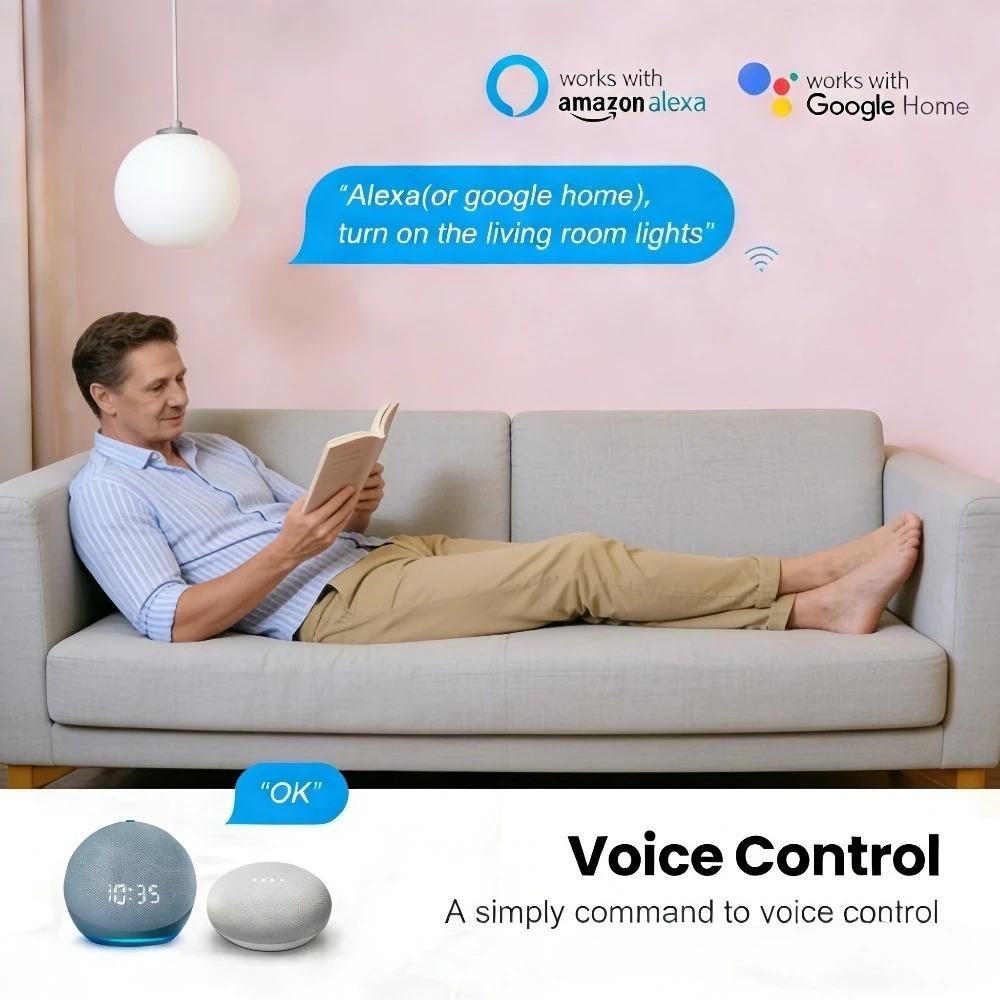
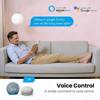
{Hand Free Voice Control} Work with Alexa,Google home
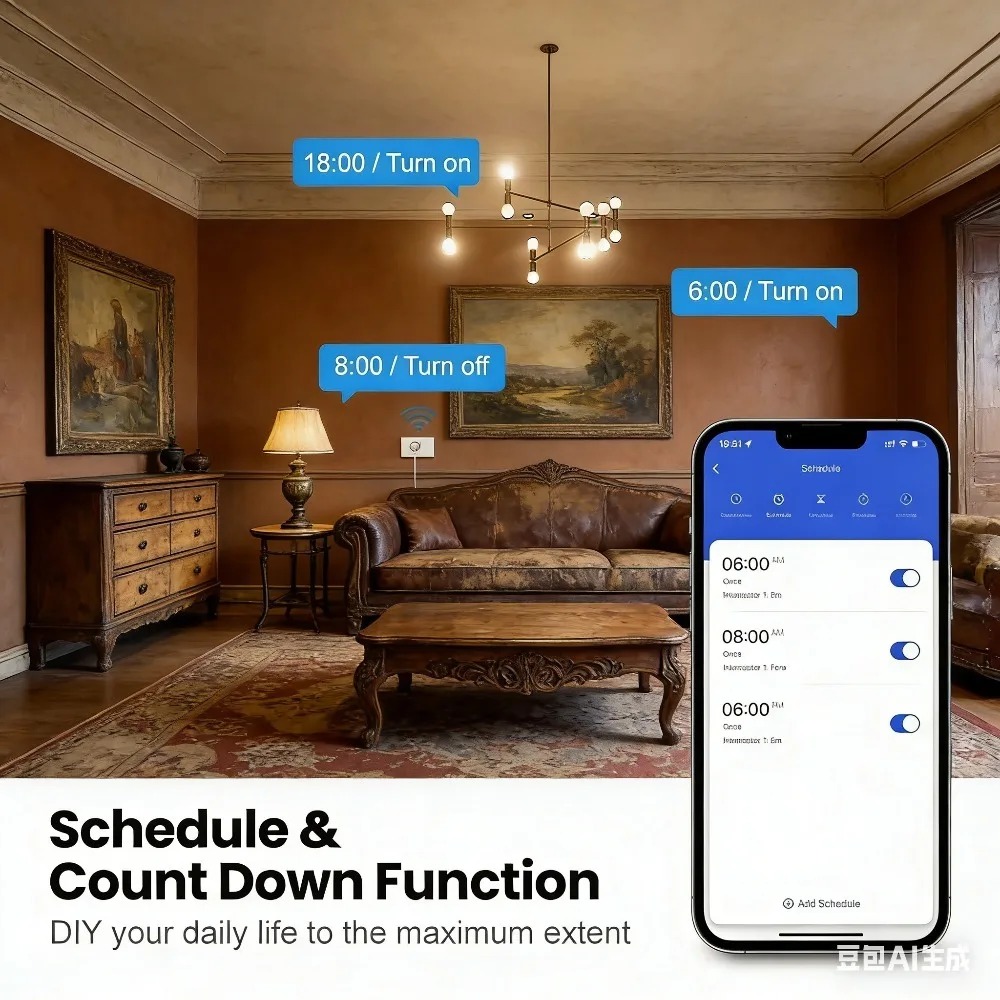
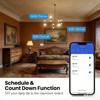
{Timer,Schedule&Count Down Function} Smart and DIY your daily life to maximum extend
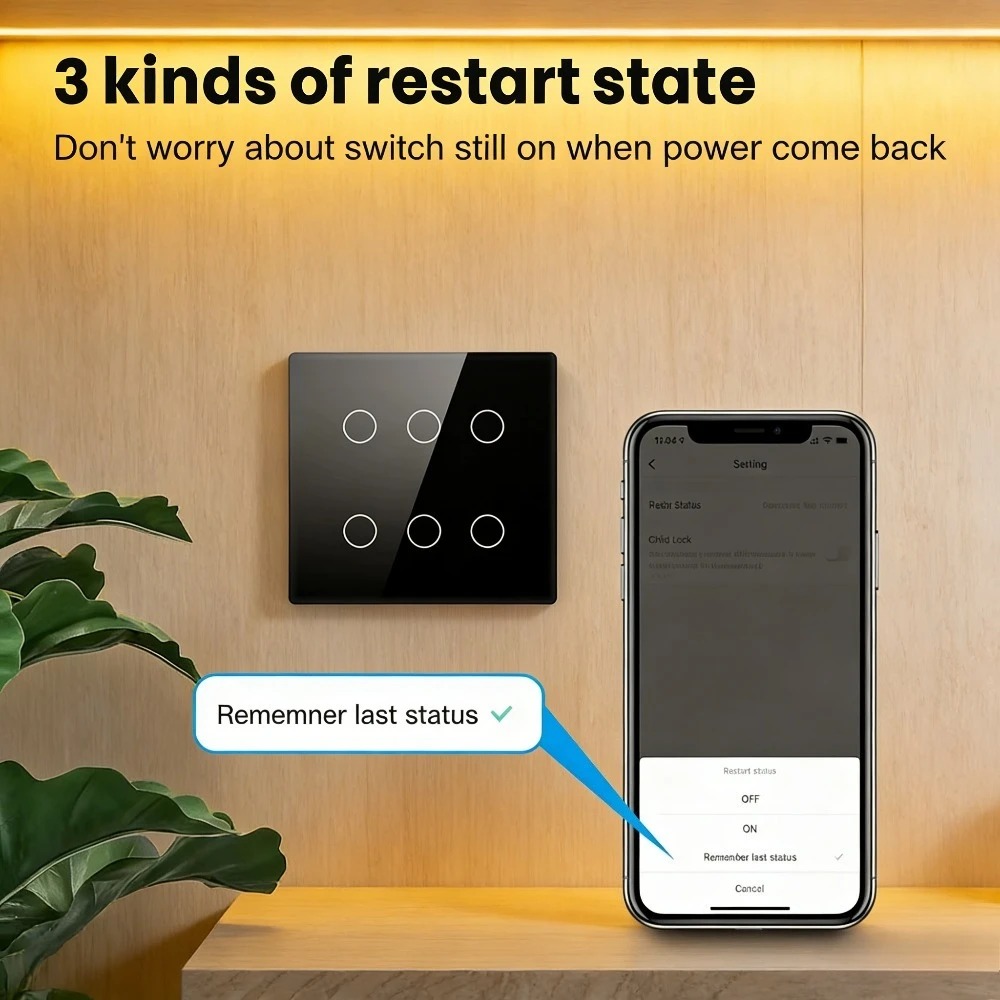
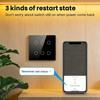
{3 kinds of restart state} Don’t worry about switch still on when power come back
{Children Lock} Locking function is designed to prevent children from operating by mistake.
{Family Share Function} Create a smart home together with your family member
{Luxury Glass Panel} Resists deformation and fading,Easy maintenanceand cleaning
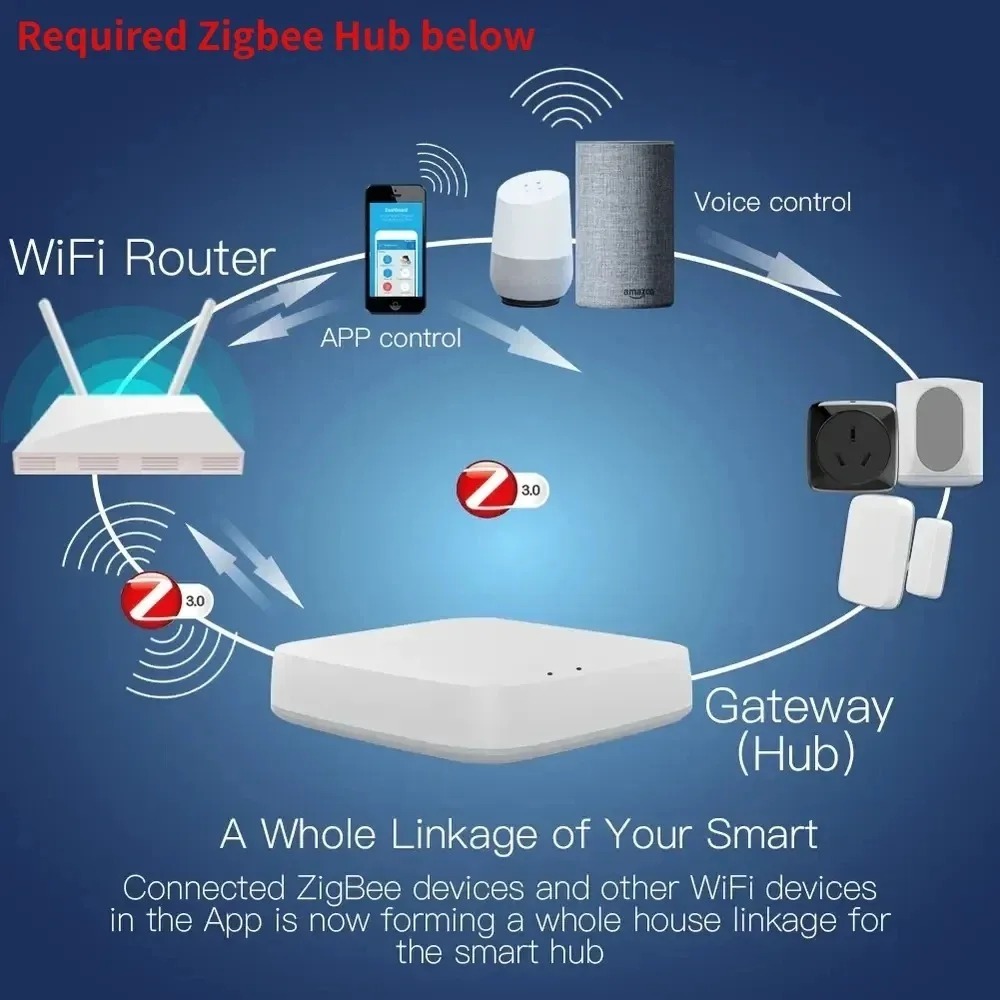
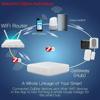
Here are the steps to pair the Tuya Zigbee smart plug with a gateway and connect it to Alexa and Google Home, for use in your AliExpress product details:
-
Power on the gateway with a Micro charging cable. Wait until the indicator light enters the setup mode: a slow – flashing red light means it’s ready for pairing. If there’s no response from the indicator, press and hold the reset button for 5 seconds until the red light starts flashing.
-
Connect your smartphone to the 2.4GHz home WiFi, download and log in to the “Smart Life” APP (registration requires a mobile phone number verification code). Enable Bluetooth and location services on your phone to improve the connection success rate.
-
Bluetooth Auto – connection (Recommended):
-
AP Hotspot Connection (When Bluetooth connection fails):
-
Button Trigger: Press and hold the switch’s pairing button for 5 seconds, or quickly press it twice. When the LED indicator light flashes blue rapidly, the switch enters the pairing mode.
-
Power – on Trigger: Power on and off the switch 5 consecutive times (one on – off cycle counts as one time). When the output LED light flashes 10 times, it indicates successful entry into the pairing mode.
-
Open the APP, enter the interface of the paired gateway device, click “Sub – devices” → “Quick Add”.
-
The APP will automatically scan for the Zigbee switches waiting for pairing. Select the device to complete the pairing (when the indicator light stops flashing and “ZB – SWITCH” appears in the APP device list). You can long – press the device name to rename it (e.g., “Living Room Ceiling Light Switch”) for easier control.
-
Ensure that the gateway and switch are properly connected to the network, and the “Smart Life” APP can control the switch status.
-
For Alexa, prepare an Echo series device (e.g., Echo Dot 5th generation), and for Google Home, prepare a Nest series device (e.g., Nest Hub). Log in to the corresponding APPs (Alexa/Google Home).
-
Open the Alexa APP, click “More” → “Skills & Games”, search for “Tuya Smart” or “Smart Life” skills and enable them.
-
Enter the login account and password of the “Smart Life” APP to complete the account binding. Alexa will automatically synchronize the device list. Voice command example: “Alexa, turn on the living room light”.
-
Open the Google Home APP, click “+” → “Set up device” → “Works with Google”, select “Tuya Smart”.
-
Log in to the “Smart Life” account for authorization. After synchronizing the switch devices, you can control them by voice. Example: “Hey Google, turn off the bedroom switch”.