
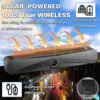

Wireless Solar Reversing Camera
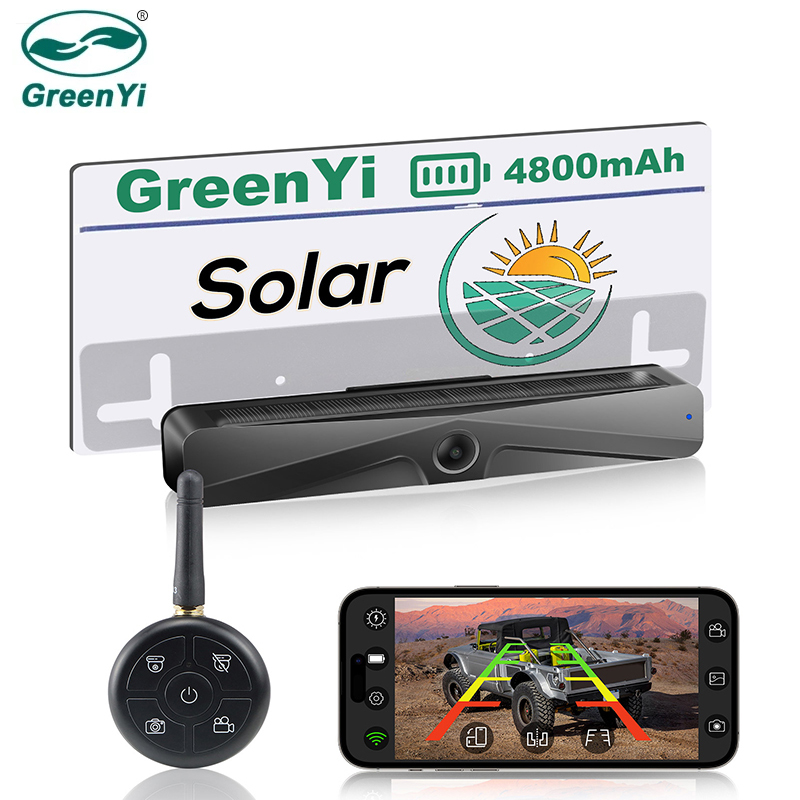
Solar Powered✔ HD 1080P✔ Quick Installation✔


Feature:
• 3 Mins DIY: The camera is easy to install, no drilling, no wiring or no professional installation skills required!
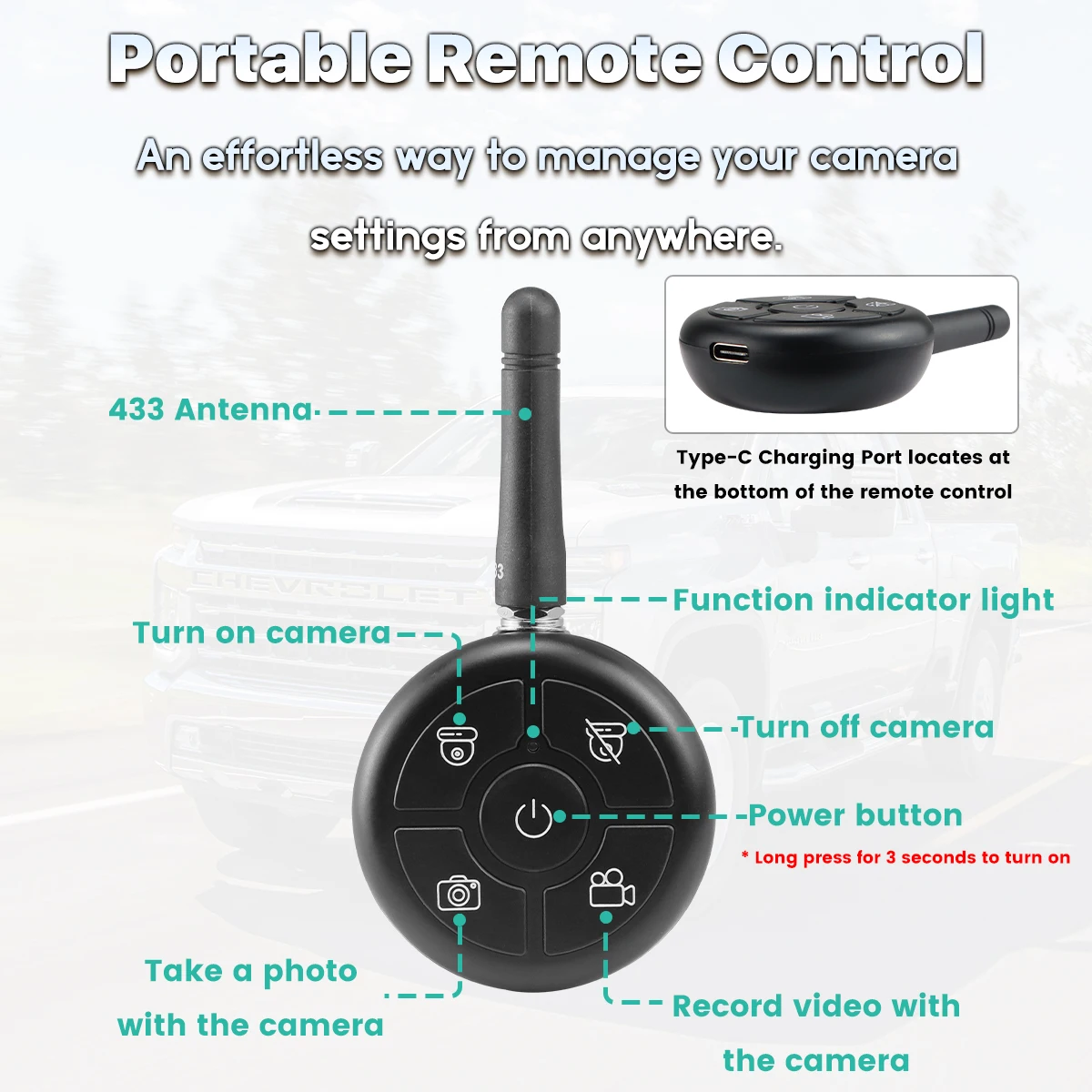
• Portable Remote Control: Easy to operate, the remote control has four function modes to choose from: Turn the camera on/off, Take Photos, and Record Videos.
The power button is in the middle of the remote control. The user can use the remote control to turn off the camera after using the car, making the switch more convenient and faster. The truck driver does not need to climb high to turn off the camera's power switch.
Press and hold it for 3-5 seconds to turn on the camera.
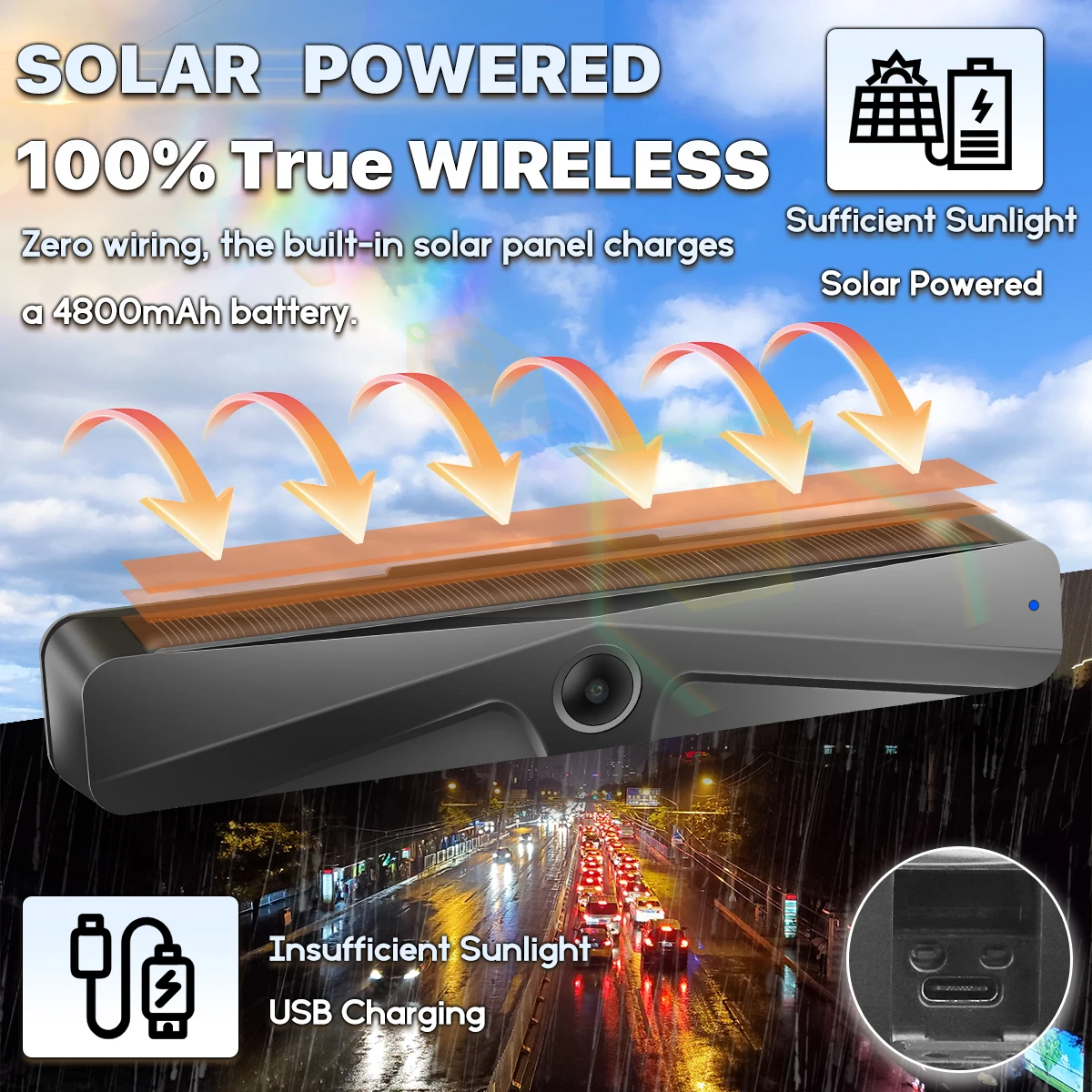
• Powered By the Sun:4800mAh larger battery capacity, the phone will display the battery status. Besides, you could charge it via power outlet(micro usb input port).
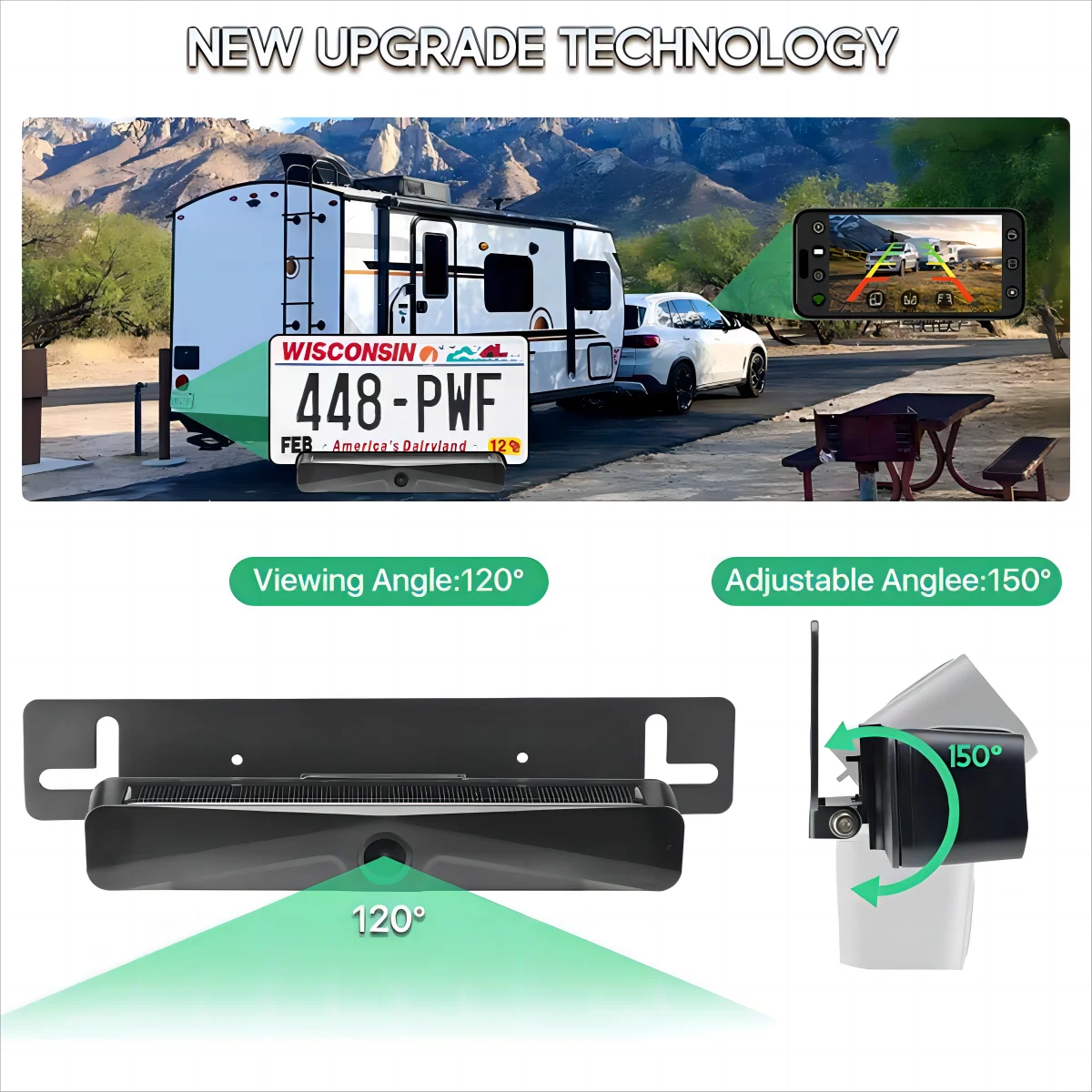
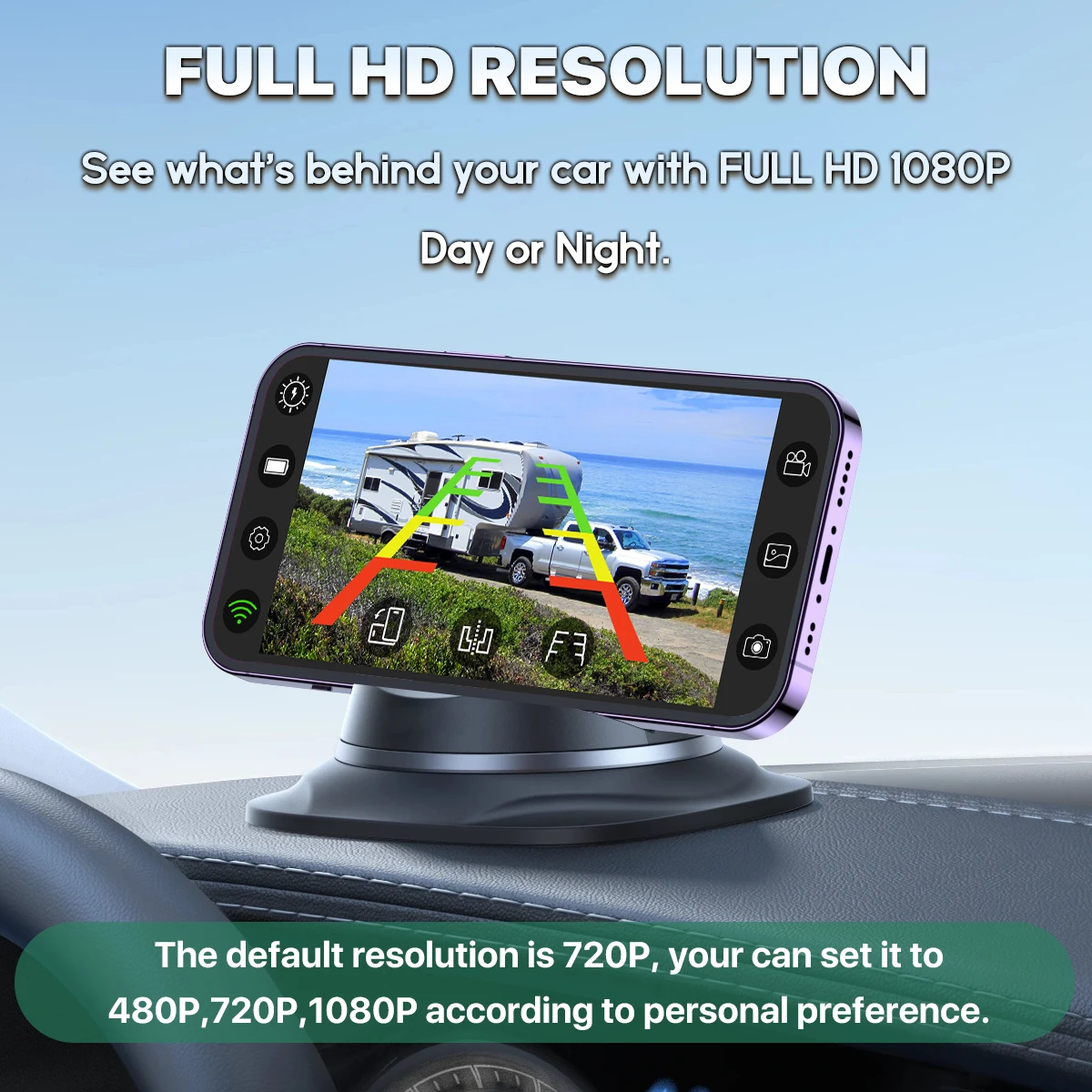
• Camera angle 120 deg, camera pixel HD 1080P.
• The phone app supports mirrored or non-mirror images, and it's flexible enough to be used as both front and rear-facing cameras.
• Real-time image & 100% No Interference: When you're driving, you can trigger the camera on with an easy press and easily see what's behind your car. Images are smooth without any flicker. It delivers digital signals which will not be interfered with other devices, such as Bluetooth.
• IP66 Waterproof & High Compatibility: No need to worry about the water get into your backup camera or its micro USB input port. Suitable for any vehicles.


Solar Reversing Camera
Solar Powered✔ 4800mAh✔ IR Night Vision✔
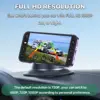
HD 1080P✔


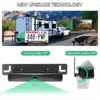
Easy to Install
Use Sticker/Screw to fix above the license plate, no wiring or no professional installation skills required.


APP Interface Display
1. Solar charging indicator: When the solar wireless camera is charging, the icon is green. When it is not charging, the icon is white.
2. Battery level indicator: When the camera is charging, the icon is green. When it is in urgent need of charging, the icon is red. When it is in normal state, the icon is white.
3. System settings: The resolution can be changed, the default is 720P.
4. WIFI indicator: When WIFI is connected normally, the icon is green. When it is not connected, the icon is red.
5. Screen rotation: Switch to vertical or horizontal screen
6. Screen mirroring: Click the icon to mirror/restore the phone display (default mirroring).
7. Reversing auxiliary line on/off: Click the icon to turn on or off the reversing auxiliary line display (default no auxiliary line).
8. Take a photo: Click the icon to take a photo of the current image displayed on the phone.
9. Album: The album saves photos and video files. Open the album to view photos and video files (album access rights are required).
10. Recording: Click the icon to turn on or off recording. When turned on, it will display: REC ●


Image Flip

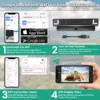
Installation Steps
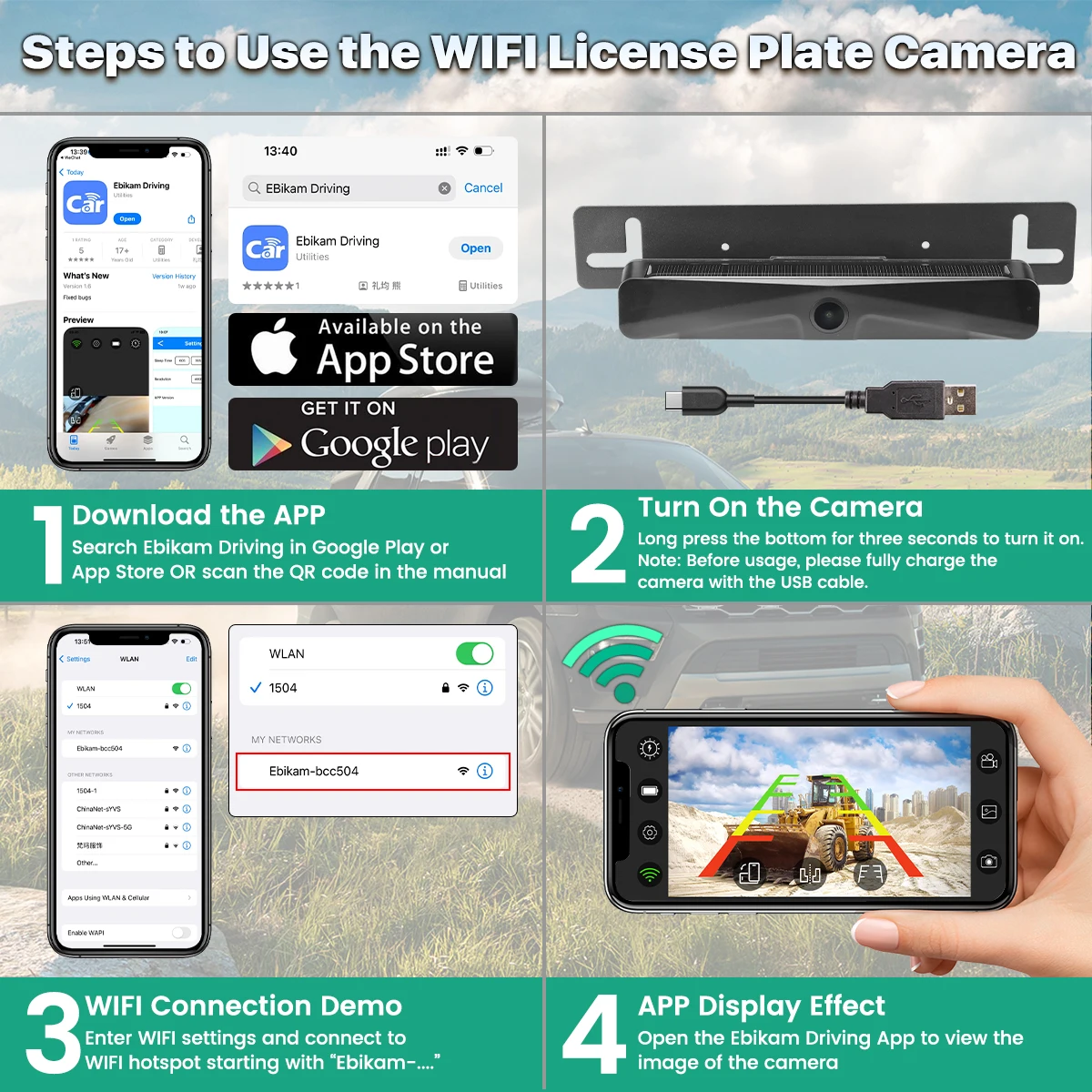
1. Scan the QR code with your phone to download and install the application or search for “Ebikam Driving” in the App Store or Google Play, then download and install the application.
2. With the camera fully charged, long-press the power button for 3 seconds, and the green light will flash slowly (2 seconds on, 1 second off). The blue light will also flash slowly (1 second on, 1 second off), indicating that it's waiting for the phone to connect to WIFI.
3. Open the WLAN settings on your phone and connect to the WIFI network starting with “Ebikam-******.”
4. Click the Ebikam Driving APP to view the camera display directly.
5. If the camera is not connected for 5 minutes after being turned on, it will automatically enter power-saving mode. When reconnecting, short press “Turn on camera” button on the remote controller to wake up the camera.


Camera Package Content